Adding and Importing Customers
PoolOps makes it easy to build your customer list, whether you're adding them one at a time or importing hundreds from a spreadsheet.
Adding Customers Manually
On the Mobile App
- Tap the Customers tab
- Tap the + button
- Fill in the customer details:
- Name (required)
- Address (required) - Use the autocomplete for accurate geocoding
- Phone number(s) - Add multiple with labels (Mobile, Home, Work)
- Email(s) - Add multiple with labels (Primary, Billing)
- Gate code - For property access
- Service day - Which day of the week
- Frequency - Weekly or bi-weekly
- Pool volume - In gallons (for chemical calculations)
- Pet warning - Toggle if there are pets
- Notes - Any special instructions
- Tap Save
On the Web Dashboard
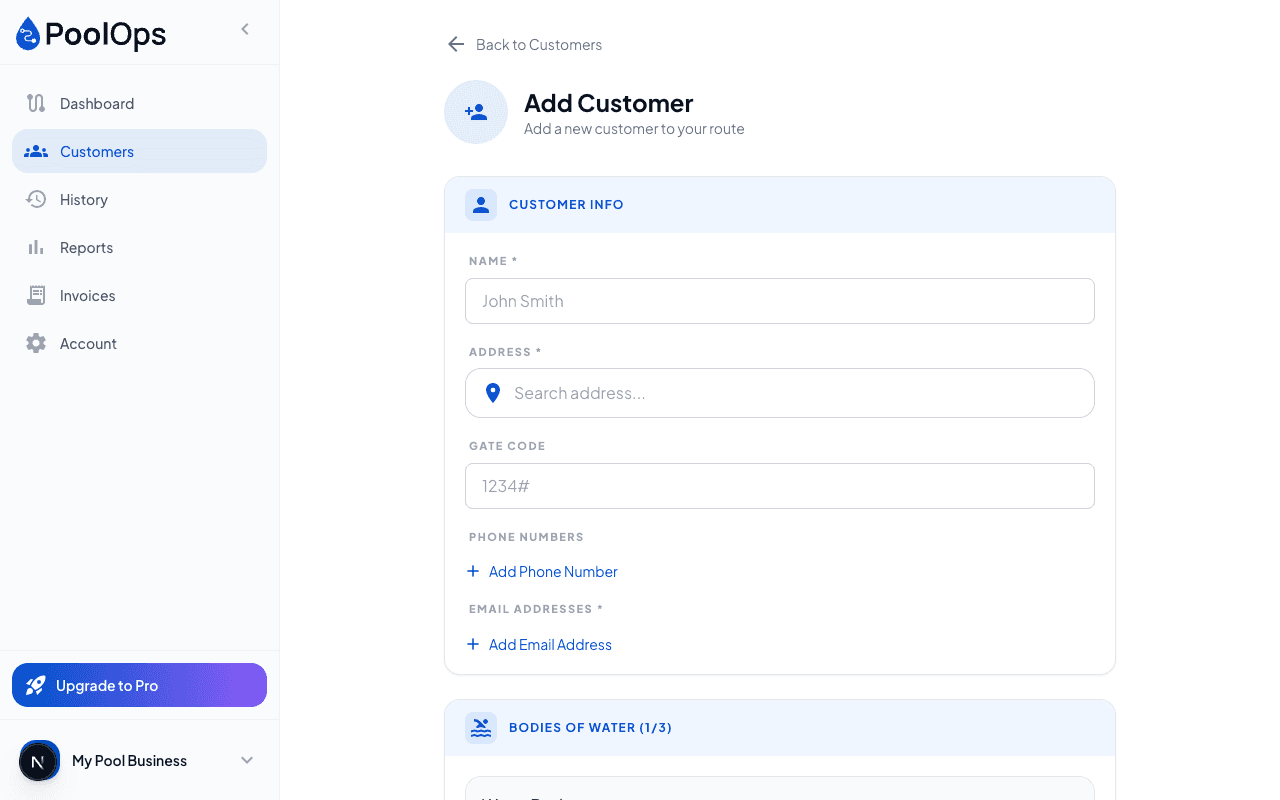
- Navigate to Customers in the sidebar
- Click Add Customer
- Fill in the same details as above
- Click Save Customer
The web dashboard has a larger form that's easier for entering lots of details at once.
Importing Customers from CSV
If you have an existing customer list, you can import it quickly.
Preparing Your File
Create a CSV (comma-separated values) file with columns for:
- Name
- Address
- Phone
- Gate code
- Service day
- Pool volume
- Notes
The import wizard is flexible and can match various column names automatically.
Web Import Process
- Go to Customers > Import
- Upload your CSV file or paste data directly
- The AI parser will extract customer information
- Review the preview:
- Check that addresses geocoded correctly
- Look for any duplicate warnings
- Fix any parsing errors
- Confirm the import
Mobile Import Process
- Go to Customers tab
- Tap the menu (three dots) > Import
- Upload or paste your data
- Review and confirm
Import Tips
- Clean your data first - Remove formatting, extra spaces
- Include full addresses - City, state, ZIP for accurate geocoding
- Check duplicates - The system warns about potential duplicates
- Start small - Test with a few customers first
Managing Multiple Contacts
Customers can have multiple phone numbers and email addresses:
Adding Additional Contacts
- Edit a customer
- Scroll to Phone or Email section
- Tap Add Phone or Add Email
- Enter the number/email
- Choose a label (Mobile, Home, Work, Billing, etc.)
- Mark one as Primary
Why Multiple Contacts?
- Homeowner + tenant - Different people at the property
- Billing vs. service - Send reports to one, invoices to another
- Backup contacts - When primary doesn't respond
Water Bodies (Pools, Spas, Fountains)
Customers can have multiple water bodies.
Adding Water Bodies
- Edit a customer
- Scroll to Water Bodies section
- Tap Add Water Body
- Choose the type:
- Pool
- Spa / Hot Tub
- Fountain
- Other
- Enter the volume in gallons
- Add any notes
Why This Matters
- Each water body is serviced separately
- LSI calculations use the specific water body's volume
- Service history tracks each water body independently