Filtering and Organizing Customers
As your customer list grows, filters help you find exactly who you're looking for.
Available Filters
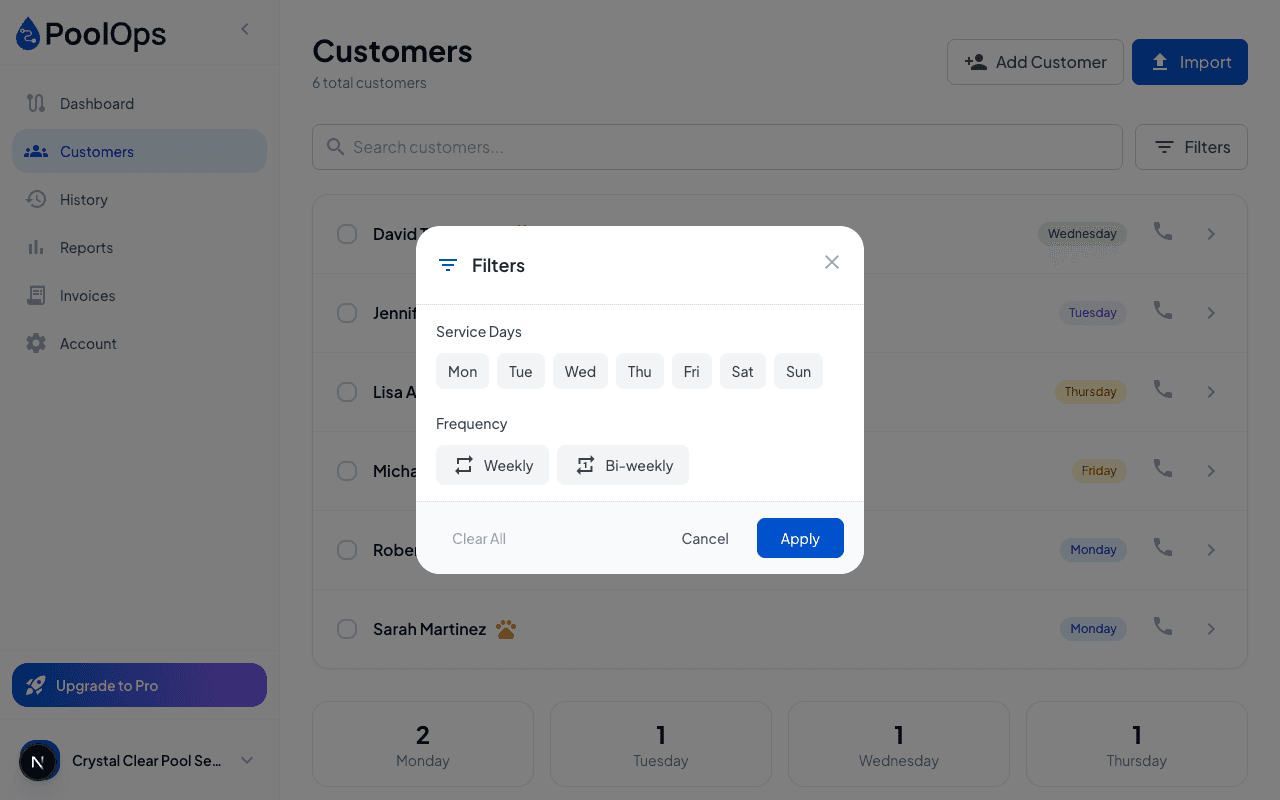
Filter by Service Day
- Monday through Sunday
- See only customers scheduled for a specific day
- Great for planning tomorrow's route
Filter by Frequency
- Weekly - Serviced every week
- Bi-weekly - Serviced every other week
Filter by Technician (Team Plan)
- See customers assigned to a specific tech
- Unassigned customers
- Useful for balancing workloads
Filter by Assignment Status
- Assigned - Has a technician assigned
- Unassigned - Needs to be assigned
Using Filters
- Go to Customers
- Click Filter
- Select your filter criteria
- Click Apply
The customer list updates to show only matching customers.
Combining Filters
You can use multiple filters together:
- "Monday" + "Weekly" = Weekly Monday customers
- "Tuesday" + "Unassigned" = Tuesday customers needing a tech
Clearing Filters
- Click the X on any active filter chip
- Or click Clear All to reset
Searching Customers
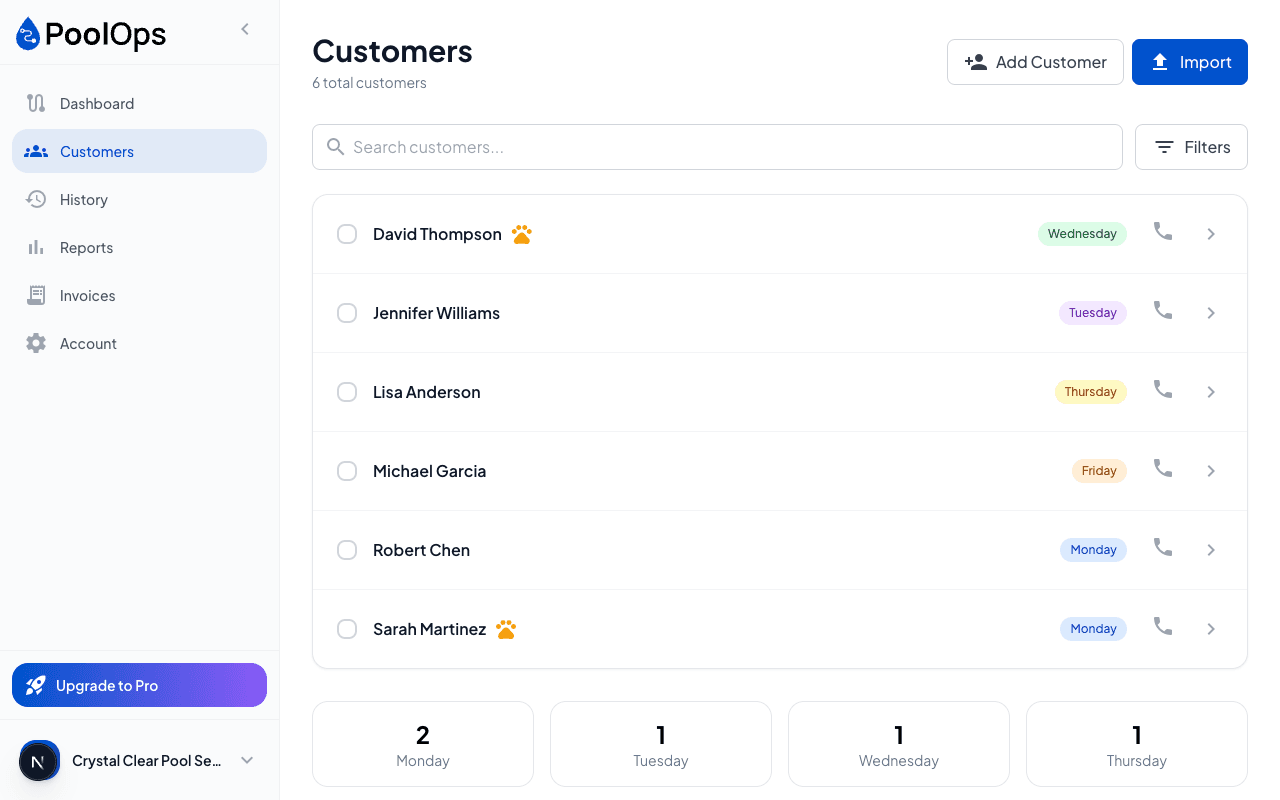
The search bar finds customers by:
- Name - Customer or business name
- Address - Street, city, or ZIP
- Phone - Any phone number on file
- Email - Any email address
Search is instant - results appear as you type.
Sorting Customers
Sort your customer list by:
- Name (A-Z or Z-A)
- Service Day (Monday first)
- Last Service (most recent first)
- Date Added (newest first)
Bulk Actions
Select multiple customers for bulk operations:
- Check the boxes next to customers
- Click Bulk Actions
- Choose an action:
- Assign to technician
- Change service day
- Export selected
Bulk actions save time when reorganizing routes or onboarding new techs.