Setting Up Your Team
The Team plan lets you manage multiple technicians, assign customers, and track service quality. Here's how to get your team set up.
Requirements
- Team Plan subscription ($59.99/mo + $9.99/seat)
- Web dashboard access - Team management is done on the web
- Technician email addresses - Each tech needs their own account
Inviting Technicians
Step 1: Navigate to Team Settings
- Log into the web dashboard
- Click Team in the sidebar
- Click Invite Technician
Step 2: Send the Invitation
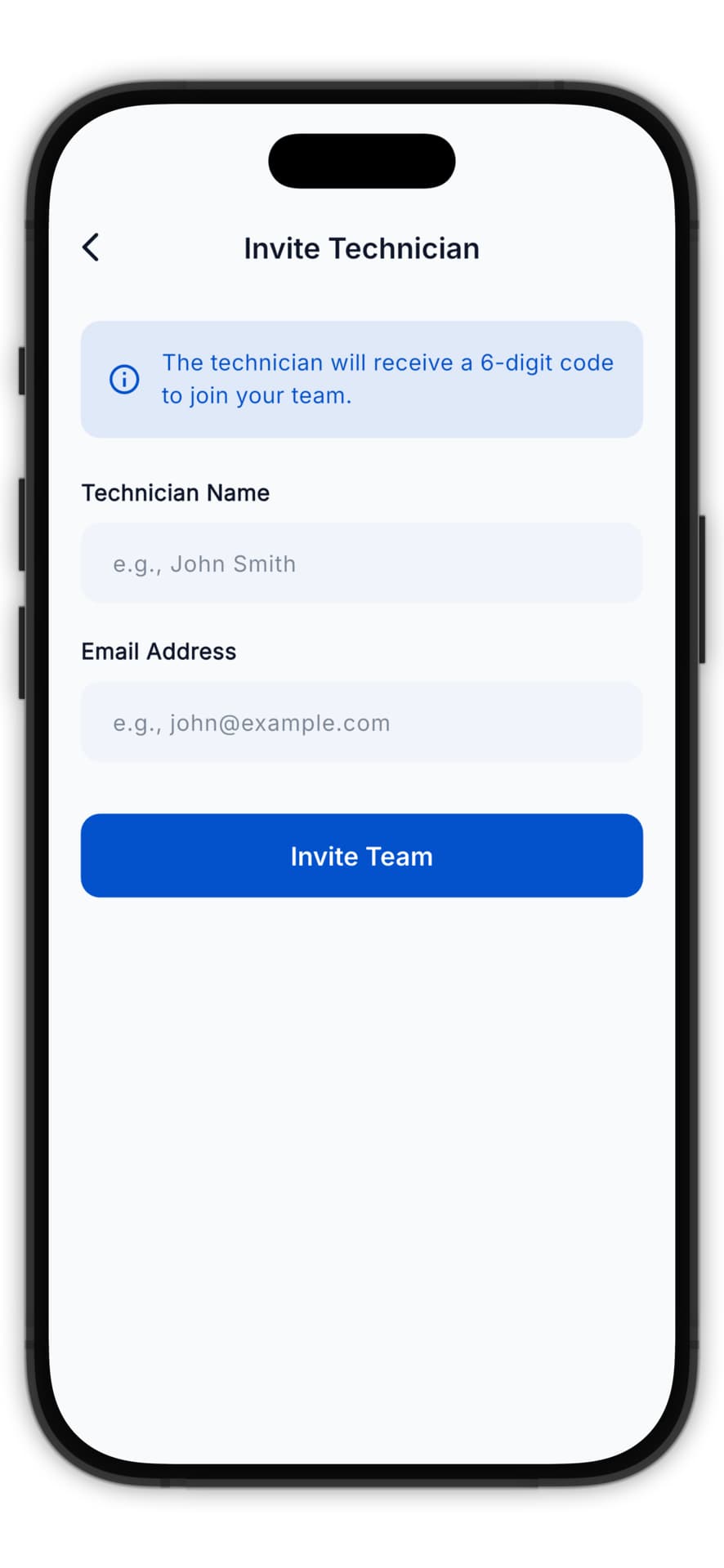
- Enter the technician's email address
- Optionally add a personal message
- Click Send Invitation
The technician will receive an email with:
- Link to create their account
- Instructions to download the app
- Your team's information
Step 3: Technician Accepts
When the technician clicks the link:
- They create a password
- Download the PoolOps app
- Log in to join your team
Managing Technician Roles
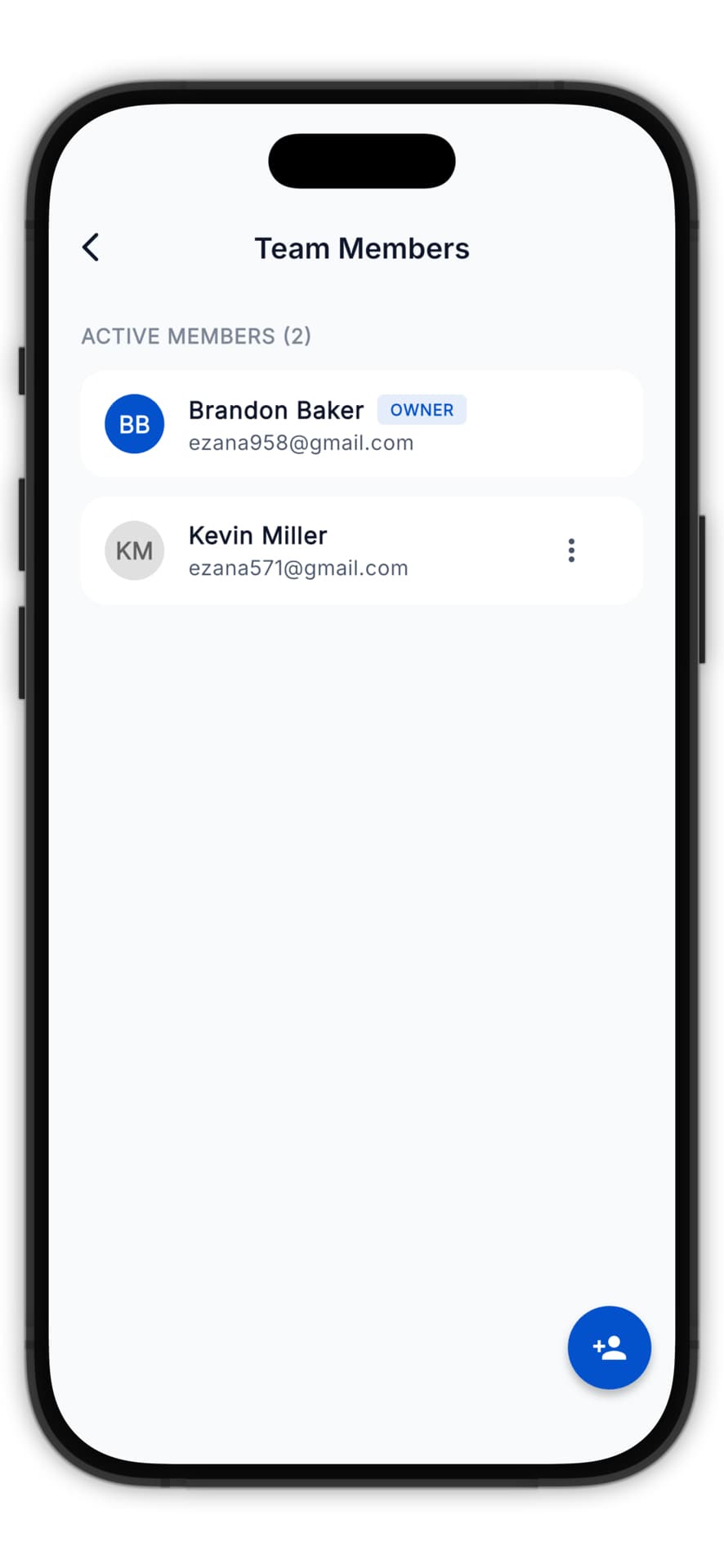
Owner (You)
- Full access to all features
- Can invite/remove technicians
- Views all customers and service logs
- Manages billing and settings
Technician
- Sees only assigned customers
- Completes service stops
- Cannot access billing or team settings
- Cannot delete customers
Assigning Customers
Individual Assignment
- Go to Customers
- Click on a customer
- Click Edit
- Select the Assigned Technician
- Save changes
Bulk Assignment
- Go to Customers
- Check multiple customers
- Click Bulk Actions > Assign Technician
- Select the technician
- Confirm
Assignment Best Practices
- Geographic grouping - Assign customers in the same area to one tech
- Balanced routes - Distribute workload evenly
- Skill matching - Assign complex pools to experienced techs
Technician Route View
Each technician sees only their assigned customers in the app:
- Their personal daily route
- Only customers assigned to them
- Their own service history
Accountability Features
GPS Verification
When enabled, the system tracks:
- Service location - Where the tech completed service
- Distance from customer - Flags if too far from address
- Spoofing detection - Alerts if GPS appears manipulated
To Enable GPS Verification
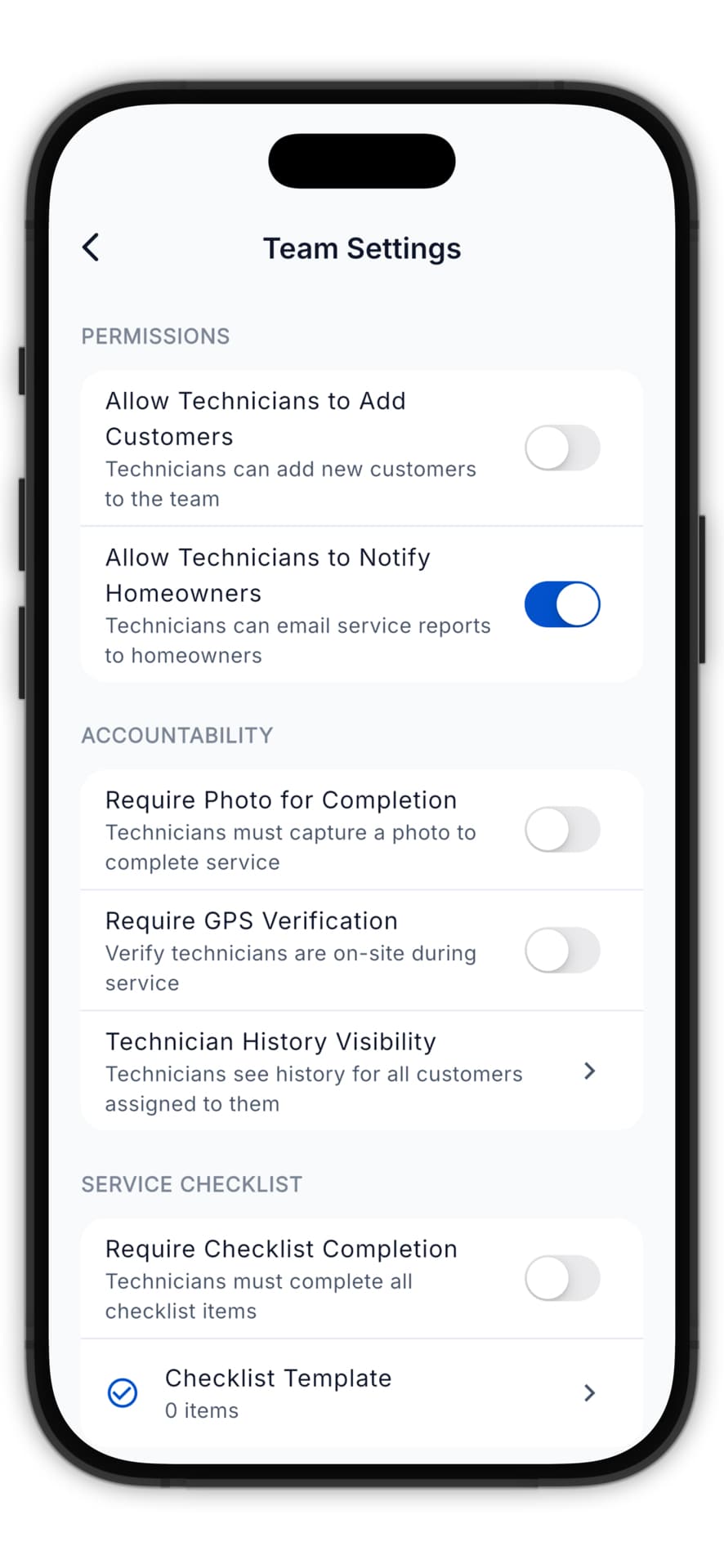
- Go to Team > Settings
- Toggle Require GPS Verification
- Set the acceptable distance (e.g., 100 meters)
Service Checklists
Create custom checklists technicians must complete:
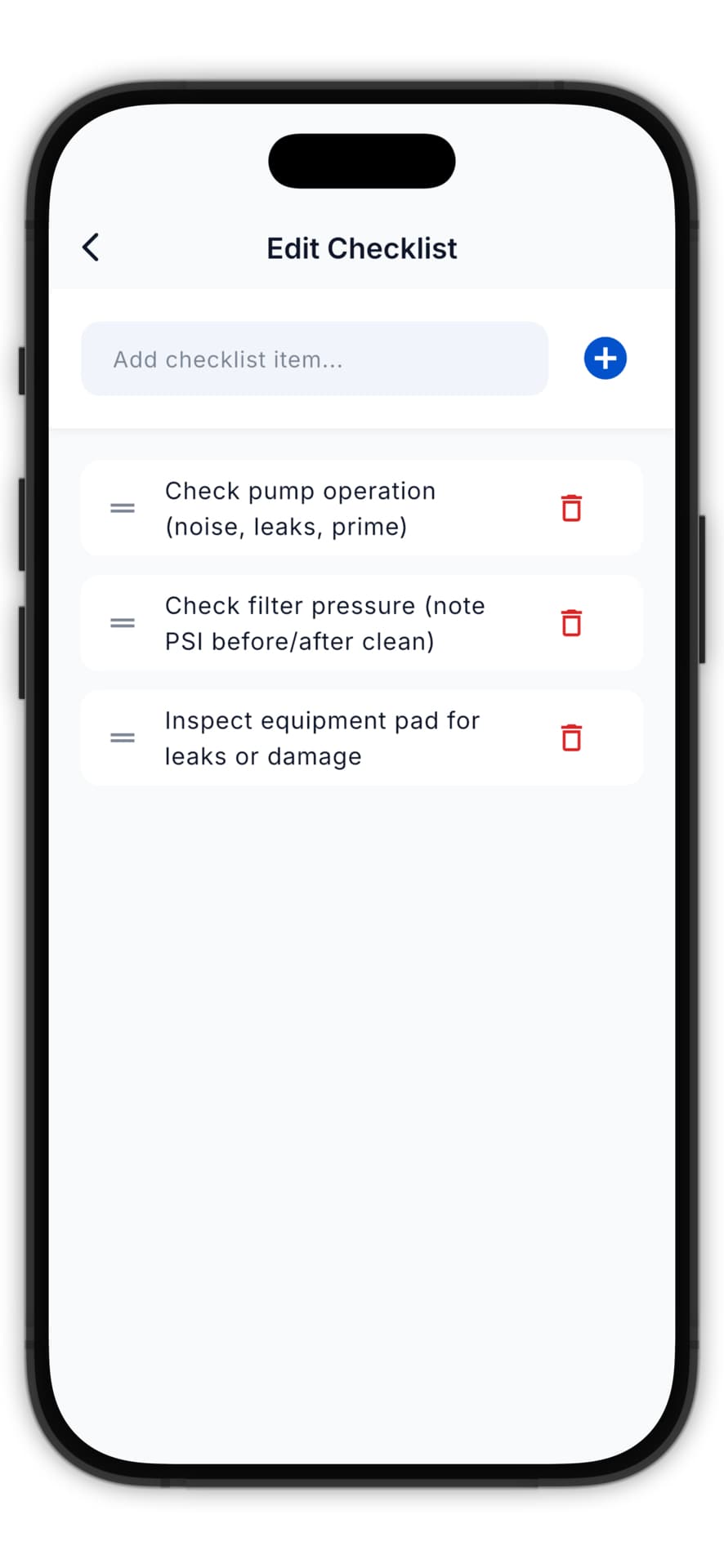
- Go to Team > Checklists
- Click Create Checklist
- Add items:
- Test water chemistry
- Clean filter basket
- Check equipment
- Take photo of pool
- Make items required or optional
- Assign to specific customers or all
Issue Flagging
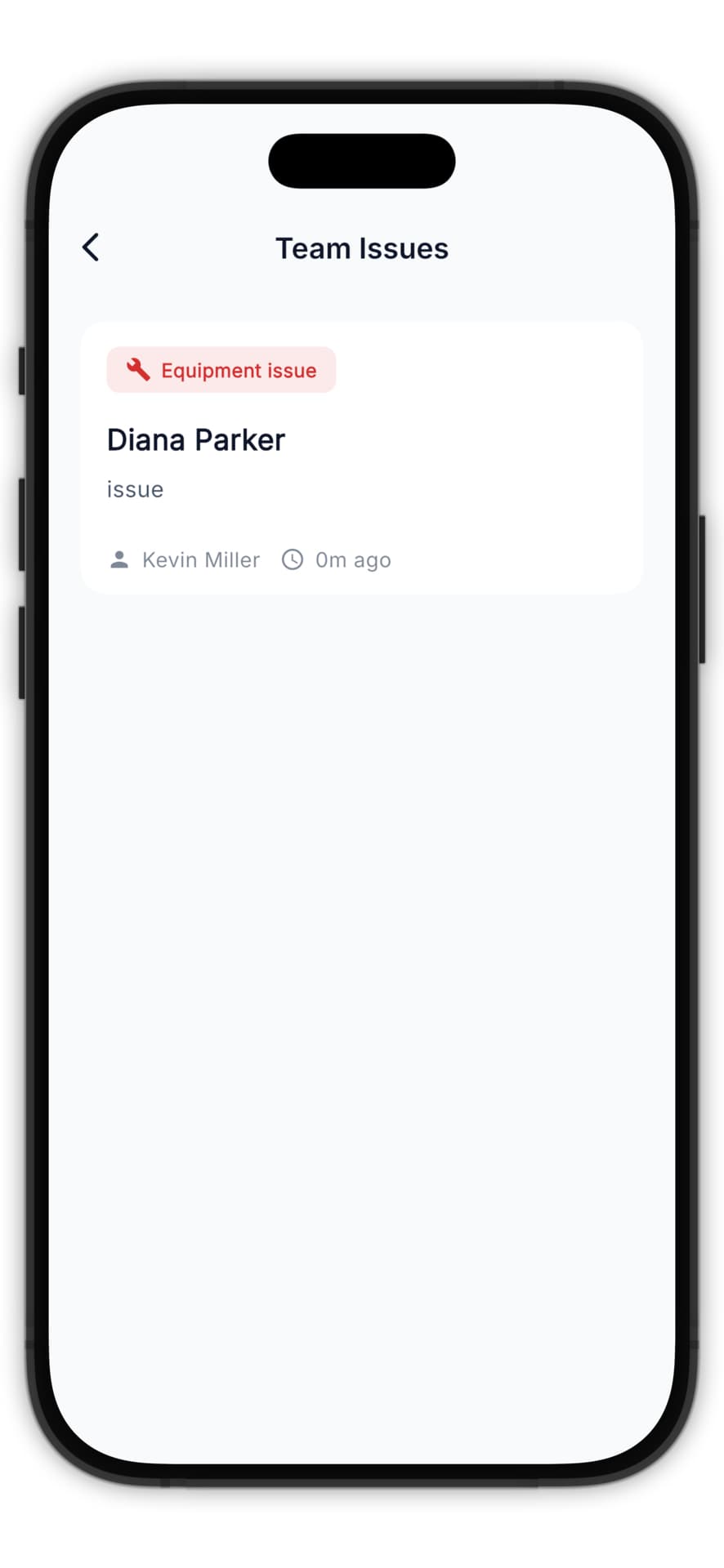
Technicians can flag problems they encounter:
- During service, tech taps Flag Issue
- Describes the problem
- Takes photos
- You (owner) receive a notification
- Issue appears in your Issues dashboard
Monitoring Your Team
Team Dashboard
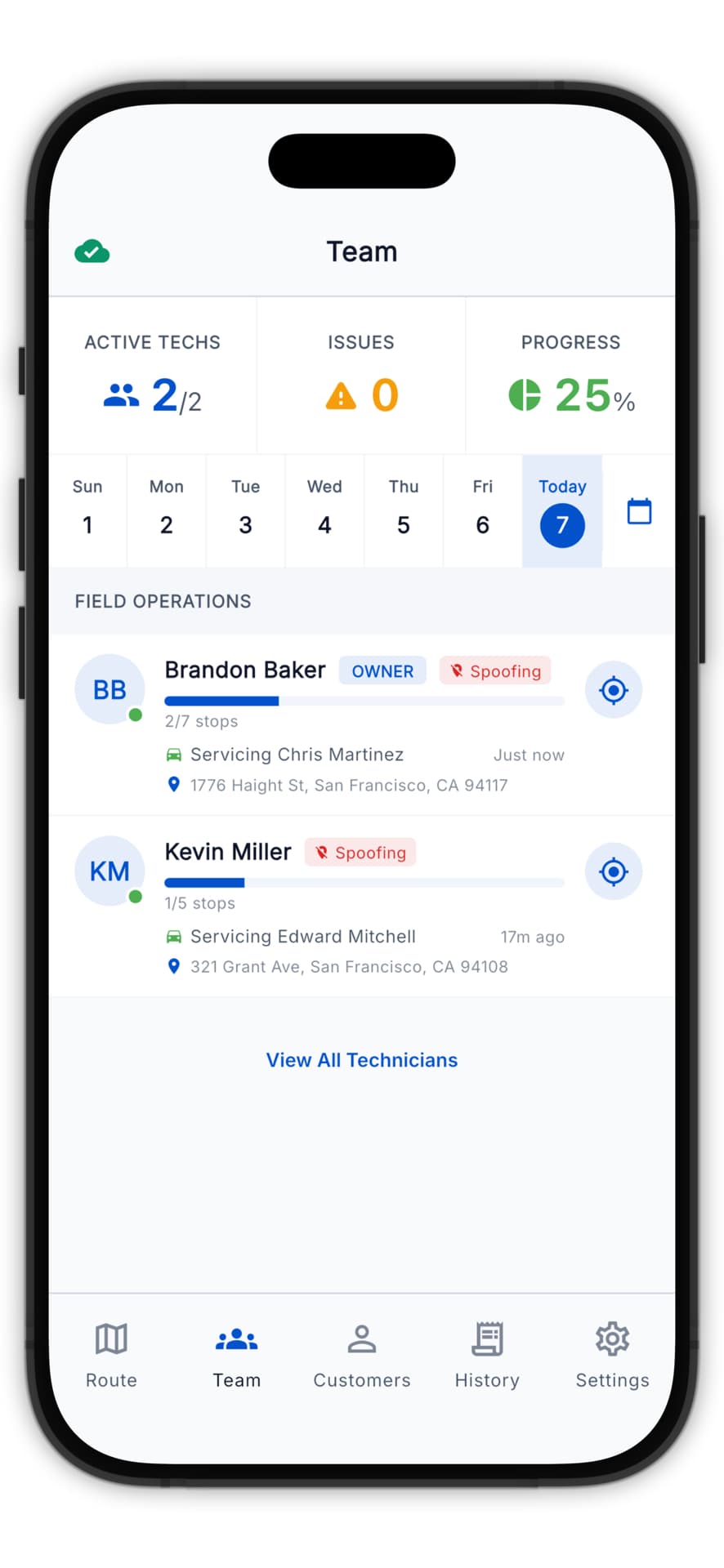
The Team section shows:
- Active technicians - Who's logged in
- Today's progress - Completed vs. pending stops
- Recent activity - Latest service completions
- Flagged issues - Problems needing attention
Service Reports
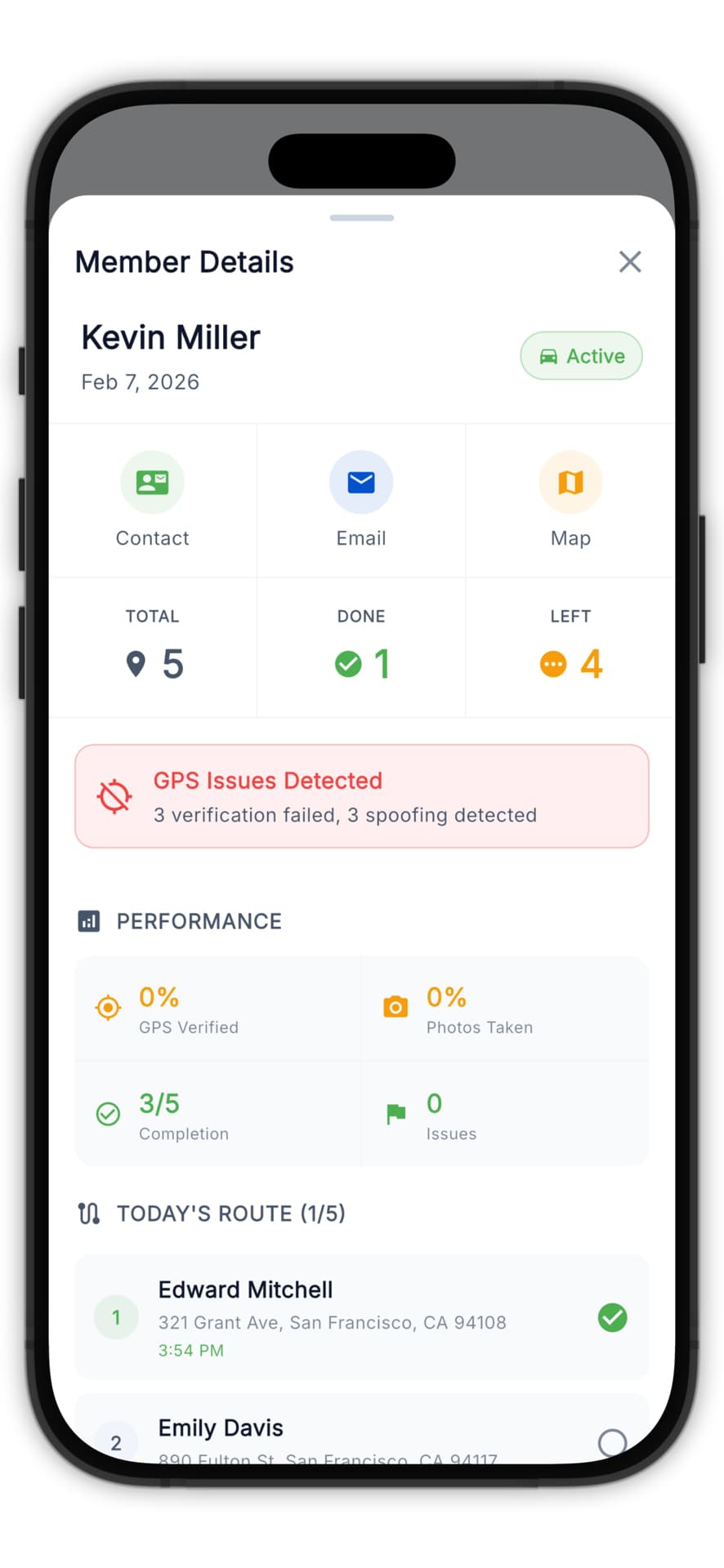
View comprehensive reports:
- Services per technician
- Average service duration
- GPS verification rate
- Checklist completion rate
- Issues flagged
Removing Technicians
To Remove a Technician
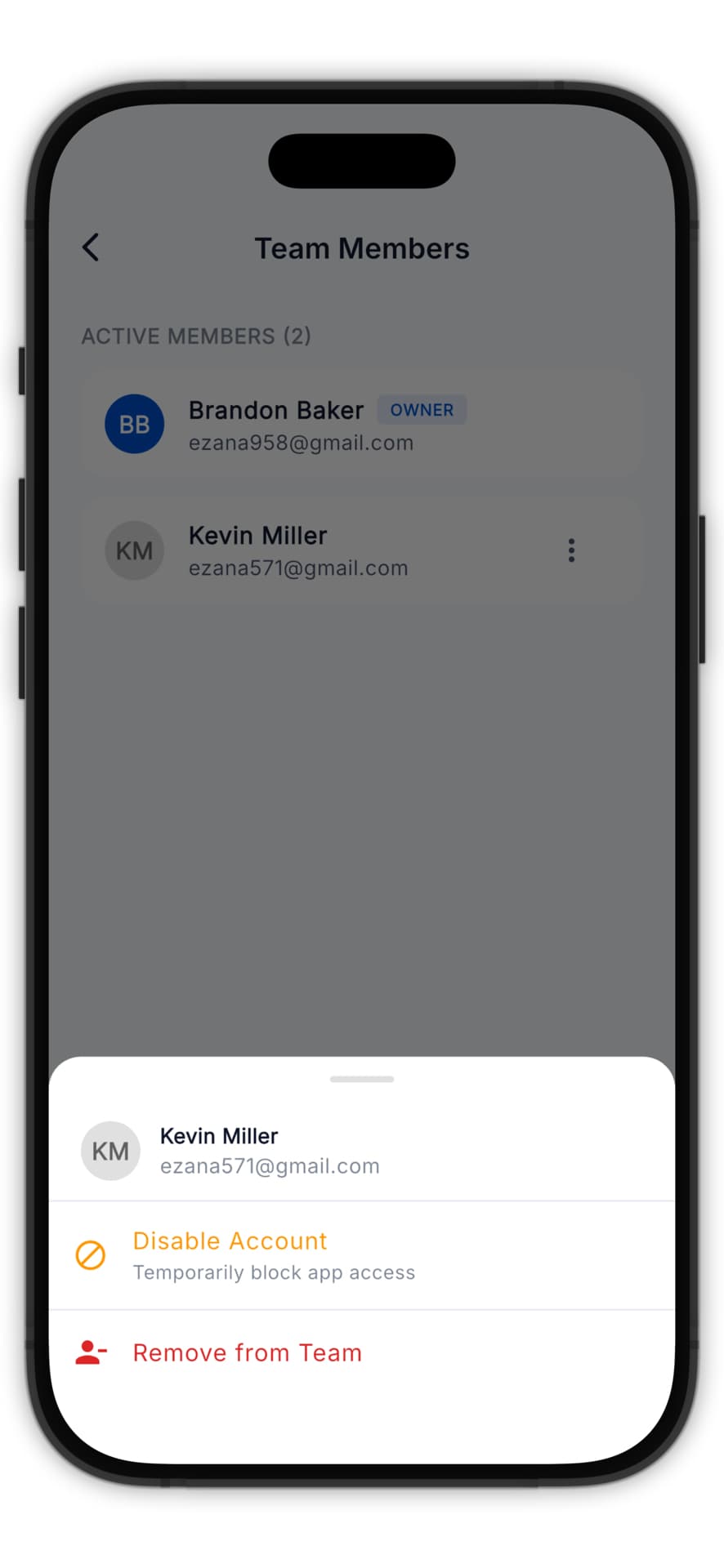
- Go to Team
- Click on the technician
- Click Remove from Team
- Confirm removal
What Happens
- Technician loses access immediately
- Their assigned customers become unassigned
- Service history is preserved
- Seat is removed at next billing cycle
Team Plan Billing
Per-Seat Pricing
- Base: $59.99/month for the owner
- Each technician: $9.99/month per seat
- Example: Owner + 3 techs = $59.99 + (3 × $9.99) = $89.96/month
Seat Management
- Seats are added automatically when you invite
- Removed seats continue until period ends
- Prorated charges for mid-cycle additions
Best Practices
- Start with one tech - Get workflows established before scaling
- Use checklists - Ensures consistent service quality
- Review reports weekly - Catch issues early
- Communicate through the app - Keep records of all instructions
- Rotate assignments occasionally - Cross-train your team