Editing Customer Information
Keep your customer records up to date by editing their information whenever it changes.
Finding a Customer
On the Mobile App
- Tap the Customers tab
- Use the search bar to find by name or address
- Tap the customer to open their profile
On the Web Dashboard
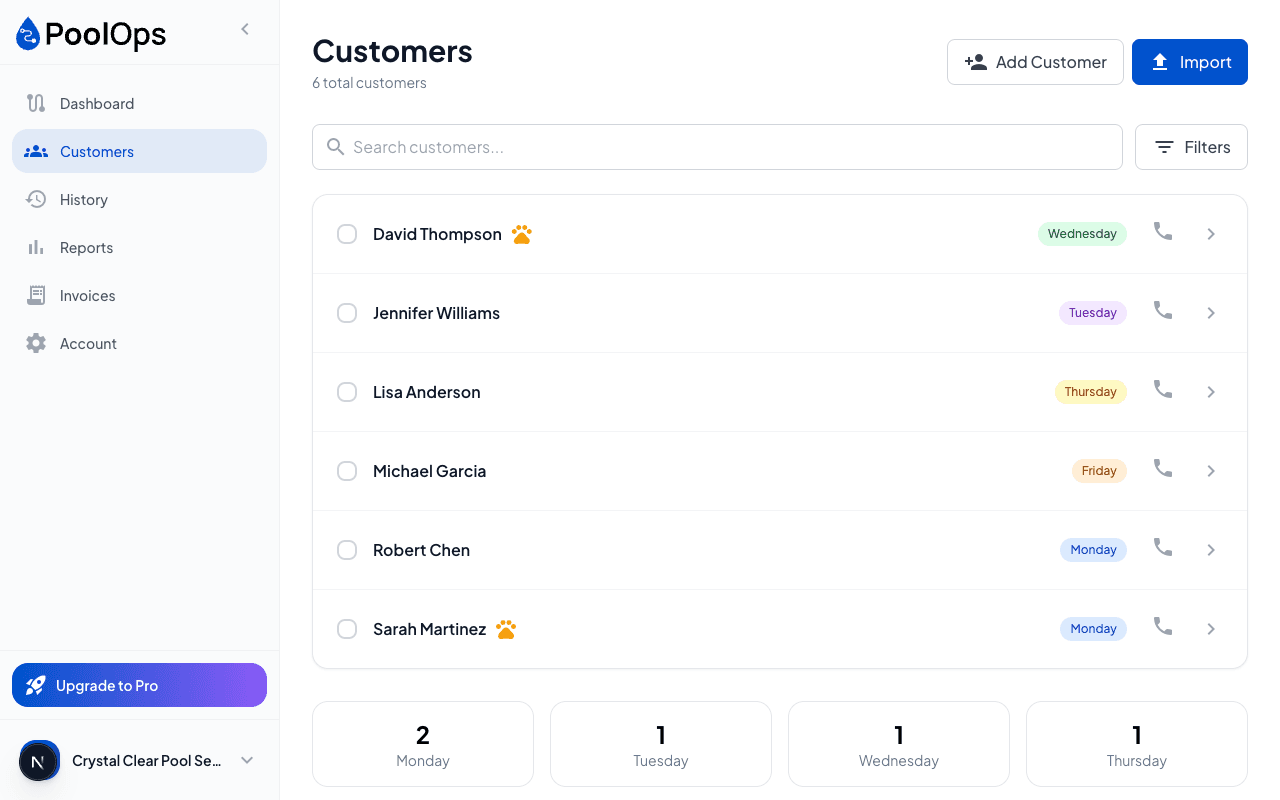
- Go to Customers
- Search by name, address, or phone
- Click the customer row
Editing Basic Information
- Open the customer profile
- Tap Edit (pencil icon)
- Update the fields you need to change
- Tap Save
Editable Fields
| Field | What to Update |
|---|---|
| Name | Customer name or business name |
| Address | Full address for routing |
| Phones | Add, remove, or change numbers |
| Emails | Update for reports and invoices |
| Gate Code | Access codes for the property |
| Service Day | Which day they're scheduled |
| Frequency | Weekly or bi-weekly |
| Pool Volume | Gallons for chemical calculations |
| Notes | Special instructions |
Changing Service Schedule
Changing Service Day
- Edit the customer
- Find Service Day
- Select the new day
- Save changes
The customer will move to the new day's route immediately.
Changing Frequency
- Edit the customer
- Find Frequency
- Choose Weekly or Bi-weekly
- Save changes
For bi-weekly customers, the system automatically tracks which weeks they're serviced.
Updating Water Bodies
Adding a New Water Body
- Edit the customer
- Scroll to Water Bodies
- Tap Add Water Body
- Fill in type and volume
- Save
Editing Existing Water Bodies
- Tap the water body to expand
- Update the volume or notes
- Save changes
Removing a Water Body
- Tap the water body
- Tap Delete
- Confirm removal
Removing a water body doesn't delete its service history - that's preserved.