Setting Up the Mobile App
The PoolOps mobile app is your field companion for managing routes, recording water readings, and completing service stops. Here's how to get started.
Step 1: Download the App
Download PoolOps from your device's app store:
- iPhone/iPad: App Store
- Android: Google Play Store
Step 2: Log In
Open the app and log in with the same email and password you used to create your account on the web.
If you don't have an account yet, you can create one directly in the app by tapping "Sign Up".
Step 3: Grant Permissions
For the best experience, PoolOps needs a few permissions:
Location Access
- Why: To show your position on the route map and verify service locations
- Recommendation: Allow "While Using the App"
Camera Access
- Why: To take proof-of-service photos
- Recommendation: Allow when prompted
Notifications (Optional)
- Why: To receive alerts about route changes or team updates
- Recommendation: Enable for team accounts
You can always change these permissions later in your device's Settings app.
Step 4: Complete App Onboarding
The app will guide you through:
- Quick Setup - Configure your basic preferences
- First Stop - Add your first customer if you haven't already
- Tour - Quick overview of key features
Step 5: Sync Your Data
If you've already added customers on the web dashboard, they'll automatically sync to the app.
This may take a few moments depending on your data size. Pull down on any screen to manually refresh.
Key App Sections
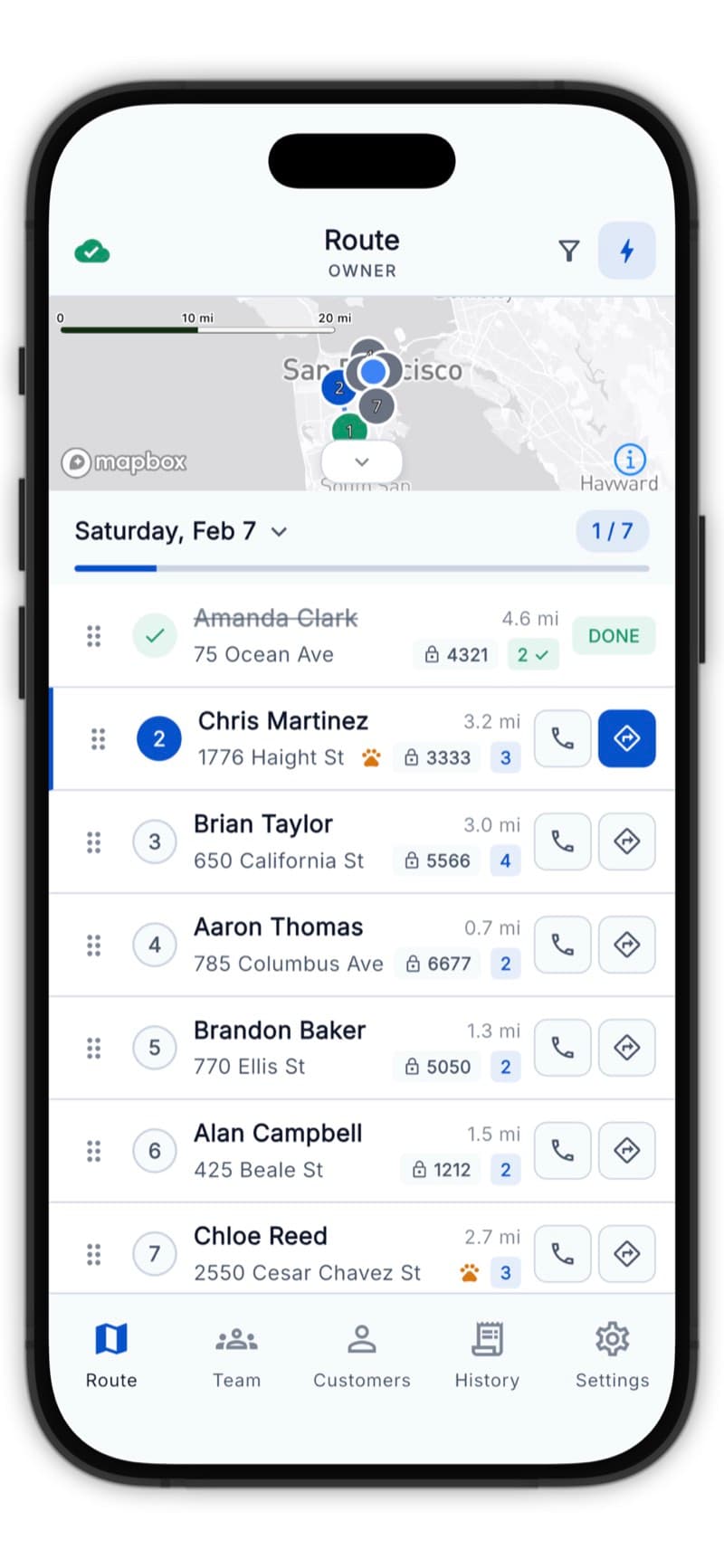
Route Tab
Your daily schedule of service stops, optimized for efficient travel.
Customers Tab
Full list of all your customers with quick access to details and history.
History Tab
View past service logs and reports.
Settings Tab
Manage your account, preferences, and app settings.
Offline Mode
PoolOps works offline! You can:
- View your route and customer info
- Complete service stops
- Take photos
Data will sync automatically when you're back online - perfect for areas with spotty coverage.
Troubleshooting
App Won't Sync
- Check your internet connection
- Pull down to refresh on any screen
- Log out and log back in
Location Not Working
- Go to your device Settings > PoolOps > Location
- Ensure "While Using" or "Always" is selected
App Crashes on Launch
- Make sure you have the latest version
- Restart your device
- Reinstall the app if needed