Recording Chemical Additions
Accurate chemical tracking helps you manage inventory, charge customers correctly, and maintain service records.
Adding Chemicals
Step by Step
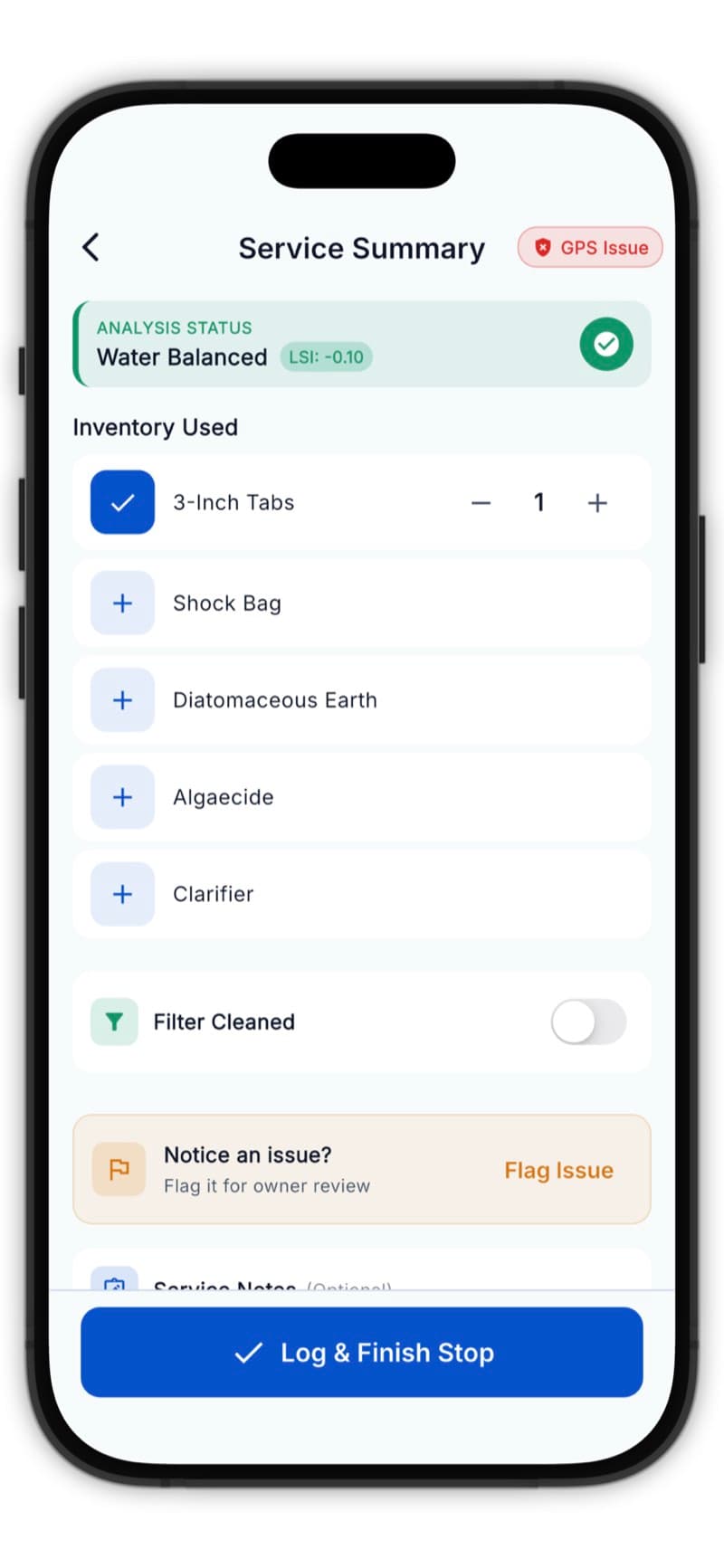
- On the Dosage screen, tap Add Chemical
- Select the chemical type from the list
- Enter the amount
- Choose the unit (oz, lbs, gallons)
- Tap Add
Common Chemicals
| Chemical | Common Units | Typical Range |
|---|---|---|
| Liquid Chlorine | Gallons | 0.5 - 2 gal |
| Muriatic Acid | Ounces | 8 - 32 oz |
| Sodium Bicarb | Pounds | 1 - 5 lbs |
| Cal Hypo Shock | Pounds | 1 - 2 lbs |
| Dichlor | Ounces | 4 - 16 oz |
| Stabilizer (CYA) | Pounds | 1 - 3 lbs |
| Calcium Chloride | Pounds | 5 - 20 lbs |
Following Recommendations
The app provides dosage recommendations based on:
- Current water readings
- Pool volume
- Target ranges
Tap the recommendation to auto-fill the chemical entry form with the suggested amount.
Tracking Inventory
Track what you use over time:
- View chemical usage in the web dashboard
- Reports show chemicals used per week/month
- Helps with inventory ordering
Multiple Chemicals
Adding more than one chemical per service is common:
- Add the first chemical
- Tap Add Chemical again
- Add the second chemical
- Repeat as needed
The service log shows all chemicals added.
Safety Reminders
Never mix chemicals together. Add one at a time, allowing time for circulation between additions.
Safe Handling
- Wear appropriate PPE
- Add chemicals to water, not water to chemicals
- Store chemicals properly in your vehicle
- Keep chemicals separated during transport
Editing Chemical Entries
Made a mistake? No problem:
- Tap the chemical entry
- Edit the amount or type
- Or tap delete to remove it
You can edit chemical entries until the service is completed.